

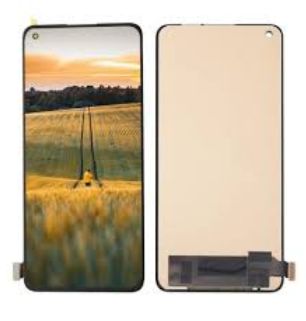
If you’ve recently cracked or damaged your OnePlus 10 Pro screen, you may be considering a screen replacement. Instead of spending a fortune at a service center, why not tackle the repair yourself? In this step-by-step guide, we will walk you through how to replace the screen of your OnePlus 10 Pro at home. Whether you need a OnePlus 10 Pro screen replacement or a general OnePlus display replacement, this guide will help you get the job done quickly and safely.
Gather the Right Tools
Before you dive into the replacement process, it’s important to ensure you have all the necessary tools. The repair process can be delicate, and using the right equipment can make all the difference. For a OnePlus 10 Pro screen replacement, you’ll need a small Phillips screwdriver, a plastic prying tool, a suction cup, a heat gun, and replacement adhesive. Make sure to order a quality replacement screen compatible with your OnePlus 10 Pro model to ensure the display works properly after installation.
Power Down and Remove the SIM Card Tray
To begin the OnePlus 10 Pro screen replacement process, you must first power down your phone completely. This is crucial to avoid any electrical damage during the repair. After turning off the device, locate and remove the SIM card tray. This step ensures you won’t accidentally damage the tray or its components when opening the phone.
Heat the Screen to Loosen the Adhesive
Next, use a heat gun or hairdryer to soften the adhesive securing the screen to the frame of your OnePlus 10 Pro. Hold the heat source about 4-5 inches from the screen and gently heat the surface for 2-3 minutes. This will make it easier to remove the display without damaging the device. Be cautious not to overheat the phone, as this can cause internal damage.
Pry Open the Device
Once the screen is sufficiently heated, use a suction cup to gently lift the screen from the body of the OnePlus 10 Pro. After creating a gap, use a plastic prying tool to carefully separate the display from the phone. Be sure to work slowly to avoid cracking the screen or damaging the delicate internal components. You may need to reheat the screen and repeat this step if the adhesive is particularly stubborn.
Disconnect the Battery and Screen
With the display separated from the device, the next step in the OnePlus display replacement process is to disconnect the battery. This step is essential for your safety and prevents any short circuits. Use a Phillips screwdriver to remove the screws securing the metal bracket that covers the battery connector. Once the bracket is removed, use a plastic tool to disconnect the battery cable.
Next, disconnect the display cables. These cables are fragile, so it’s important to handle them with care. Make sure to remember the position and orientation of the connectors for reassembly.
Remove the Broken Screen
Now that the screen and battery are disconnected, you can fully remove the broken display. Gently lift the screen off, ensuring you don’t damage any internal parts. If the screen is stuck, you can use a plastic prying tool to help loosen it further.
Install the New Screen
Take your replacement screen and carefully align it with the frame of your OnePlus 10 Pro. Connect the display cables to their respective connectors, ensuring they are properly seated. Once the display is secured, reconnect the battery to the phone. Be sure to double-check that all cables are in the correct position and that everything is tight.
Secure the Screen and Reassemble the Phone
Now that the new screen is in place, it’s time to secure it to the device. Use the same adhesive that was used for the original display, or replace it with a new adhesive strip. Carefully press the screen into the frame, ensuring it sits flush with the device. Once the display is secured, reattach the metal bracket covering the battery connector and tighten the screws with your Phillips screwdriver.
Test Your New Display
Before sealing up your OnePlus 10 Pro, power the device back on to test the new screen. Check the touch functionality, display clarity, and any other features to ensure everything is working properly. If the display works without issues, you can proceed to reassemble the device.
Seal Up and Power Up
Once you’re confident the new OnePlus display replacement is functioning correctly, you can reassemble the phone. Carefully place the back cover back onto the device and press it into place. If necessary, replace any screws or components you may have removed. Finally, power up the phone and enjoy your fully functional screen!
Replacing the screen of your OnePlus 10 Pro can seem intimidating, but with the right tools and patience, it’s entirely doable. If you need further guidance or replacement parts, RepairFully.com offers reliable resources for your repair needs. Good luck with your OnePlus 10 Pro screen replacement!